
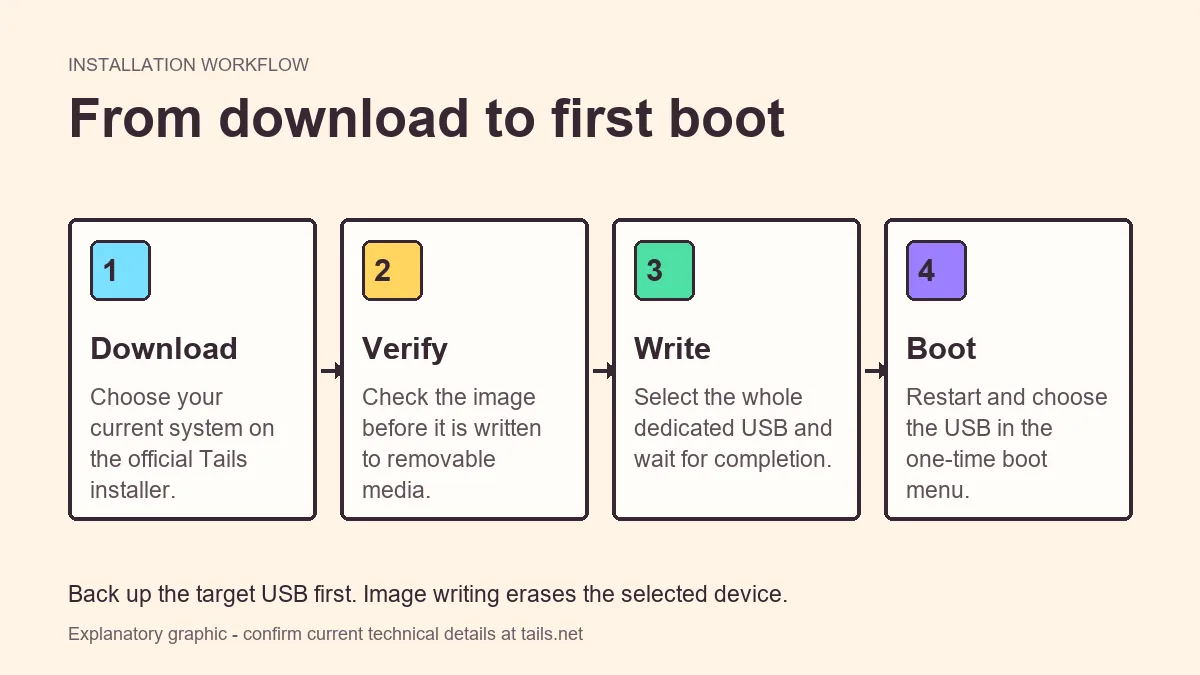
From Linux, download and verify the current Tails USB image, identify the complete removable device rather than one partition, write it with the official graphical or command-line method, wait for data to sync, then boot from the USB.
Identify the whole removable device
Linux device paths are compact and unforgiving. A removable USB might be `/dev/sdb` while `/dev/sdb1` is only a partition on it. The image must be written according to official instructions, and selecting `/dev/sda` or an NVMe system disk can destroy the installed system.
Compare size, transport type, model, and the device list before and after connecting the USB. Disconnect unrelated storage first.
- Back up the USB elsewhere.
- Record the device size and model.
- Distinguish whole device from partition.
- Unmount partitions if the official tool requires it.
A root command does exactly what the device path requests. There may be no confirmation and no undo.
Download, verify, and write Tails
Prefer the graphical method documented by Tails when you are not comfortable auditing a raw device path. Experienced users should still copy current commands from official instructions rather than relying on memory.
- 1
Download from tails.net
Choose the Linux installation path and save the current USB image.
- 2
Verify the image
Complete the offered official verification and stop if it fails.
- 3
Confirm the target
Identify the whole removable device using size and model, then unmount its mounted partitions if instructed.
- 4
Write the image
Use the current graphical tool or documented command and do not interrupt it.
- 5
Sync and eject
Wait for all buffers to flush before removing the device.
Graphical writer versus command line
Both approaches can produce the same result when used correctly. The practical difference is how clearly the tool presents target selection and progress.
| Method | Advantage | Main risk |
|---|---|---|
| Graphical disk/image tool | Visual device selection and progress | Selecting the wrong listed disk |
| Documented command line | Available on many systems | Typing the wrong raw device path |
| File copy in a file manager | Familiar interface | Does not create the required boot image |
Boot and troubleshoot from Linux hardware
Restart and use the one-time boot menu. The installed Linux bootloader does not need to be modified for a temporary Tails USB session.
If the device is absent, try another direct port. If it appears but fails on several computers, verify and rewrite the image or test another USB drive.
- Do not add Tails to GRUB as a substitute for the supported USB workflow.
- Keep the USB connected during startup.
- Choose the removable UEFI entry.
- Check graphics and wireless known issues after the welcome screen appears.
Audit the Linux write before first use
After the writer finishes and data is synced, inspect the command or tool history while the device names are still familiar. Confirm that the selected path belonged to the removable USB and that no error was hidden above the final prompt. Then remove and reconnect the drive rather than assuming a mounted partition preview is a boot test.
Perform the first boot on a compatible machine and return to the installed Linux system afterward. The internal bootloader should remain unchanged. If the Linux distribution begins offering to repair or mount unfamiliar Tails partitions, decline automatic changes until you have checked current official guidance.
For repeatable administration, record the USB model, whole-device identification method, verification result, and working boot entry. Do not turn that record into a reusable raw command with a fixed `/dev/sdX` path: device letters can change whenever disks are added or removed.
- Review writer output for errors.
- Never reuse a fixed device path blindly.
- Decline automatic partition repair.
- Confirm the internal Linux bootloader is unchanged.
- Document identification evidence, not only the command.
Repeat a Tails Linux download without reusing device guesses
Every Tails Linux download should begin with the current official Linux page and end with a newly identified removable device. Do not reuse an old `/dev/sdX` value: Linux assigns device letters according to the storage detected in that session. Compare model, capacity, transport, and the device list before and after connecting the USB.
Verify the Tails Linux download before opening a graphical writer or running a documented raw-write command. The target should be the whole removable device required by the current instructions, not a mounted partition or the internal system disk. Wait for buffers to sync, eject cleanly, and review writer output for errors before restarting.
After the first boot, keep a short Tails Linux download record with the official source, verification result, USB model, successful port, and boot-menu entry. Record identification evidence rather than a reusable destructive command. This makes rebuilding safer when disks, distributions, or hardware change.
- Verify each new Tails Linux download.
- Identify the whole removable device every time.
- Wait for sync and clean ejection.
- Do not let Linux automatically repair the Tails partition layout.
Tails from Linux FAQ
Should I write to /dev/sdb or /dev/sdb1?
Follow the current official command exactly. Image workflows normally target the whole device, but never infer the path without checking.
Can I use dd?
Use a command only when it appears in current official Tails instructions and you understand the target-device risk.
Do I need to change GRUB?
No. Use the firmware one-time boot menu for the removable USB.
Why did writing finish after the progress command returned?
Storage buffers may still be flushing. Use the documented sync/eject process before removing the drive.
Why did the USB device path change?
Linux assigns device names according to detected storage at that moment. Adding or removing a disk can change `/dev/sdX` letters. Re-identify the removable drive by model, size, and transport every time instead of reusing an old command.
Should I repair the Tails partitions when Linux offers?
Do not allow an automatic repair merely because the distribution does not recognize the layout. First test the USB and consult current Tails documentation. A generic repair can alter a correctly written boot image.
Can I write Tails while the USB partitions are mounted?
Follow the current official Linux method. Raw image workflows commonly require mounted partitions to be unmounted first, while the whole removable device remains connected and identifiable.
Technical facts and downloads should be confirmed against the official Tails documentation. This independent guide does not host or modify Tails images.