
Create Persistent Storage on a verified, dedicated Tails USB only after a clean first boot. Choose a passphrase you can protect, enable only the features you understand, test that the selected data returns after a restart, and keep an independent backup. Persistent Storage protects selected data at rest; it does not make an unlocked session, a compromised computer, or an identifying account anonymous.
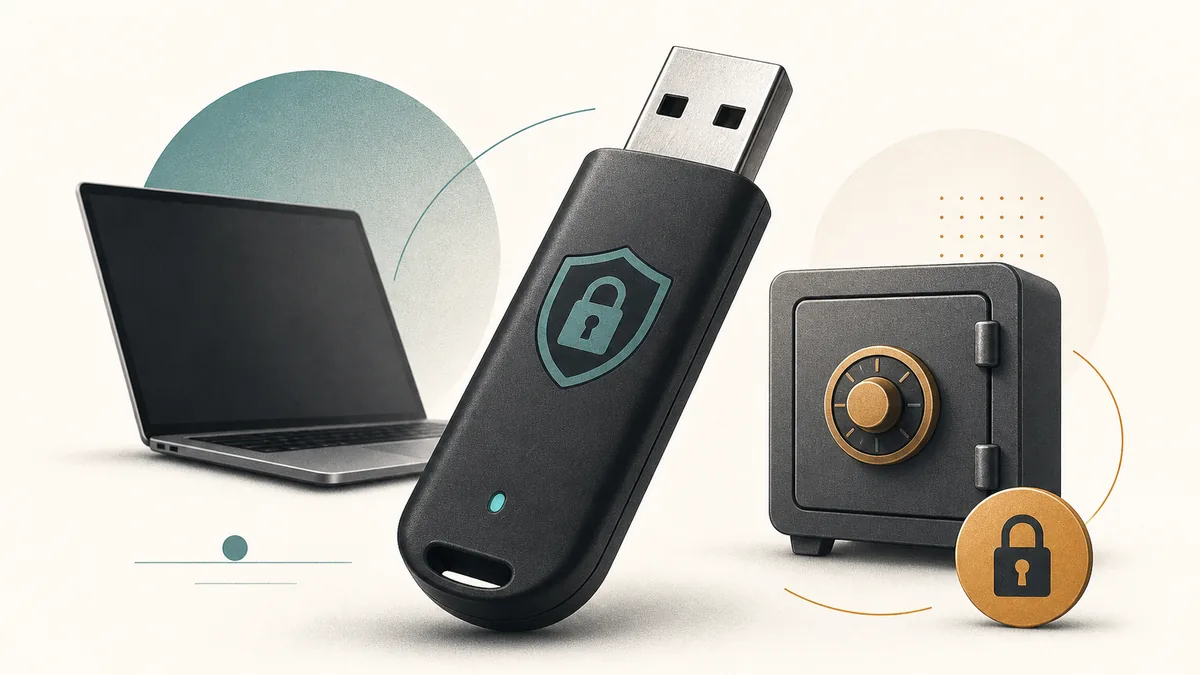
What Tails Persistent Storage does
A normal Tails session is designed to leave little ordinary state on the computer after shutdown. Persistent Storage is the deliberate exception: it creates an encrypted area on the Tails USB for supported files, settings, or features that you choose to keep between sessions.
That choice gives you continuity without turning Tails into a conventional hard-drive installation. The USB remains the operating medium, the storage is protected by a passphrase, and the list of supported persistent features can change with Tails releases. Read the current official documentation for the exact options shown by the version you are running.
The useful mental model is a locked container inside a live system. It can preserve selected state, but it does not preserve every browser action, every application cache, or every trace of a session. If the data is important, treat the Persistent Storage area as one working copy and maintain a separate recovery copy.
- Optional: Tails works without Persistent Storage.
- Selective: only supported items that you enable should persist.
- Encrypted: the storage is intended to be protected when it is locked.
- USB-bound: the normal supported workflow uses a dedicated Tails USB.
Persistent Storage controls what selected data survives. It does not erase identity clues, protect a compromised host, or make a personal account anonymous.
Before you create it
Start with the official Tails download and verification process. The current official download page showed Tails 7.11 and a 1.8 GB image when checked on August 22, 2026. This guide uses the official page as the download destination because a stable, verifiable direct file URL is not being claimed.
Use a dedicated USB that you can identify confidently. Writing or rebuilding Tails can erase the selected device, and a worn or unreliable flash drive can make a storage plan look like a software problem. Complete one clean boot first, confirm that the computer and network work, and then create persistence.
Decide what you actually need to keep. A short-lived session may need nothing. A longer workflow may need a small set of documents or settings, but every retained item increases the importance of passphrase protection, backups, and careful shutdown.
- Verify the image before writing or rebuilding the USB.
- Back up anything already on the target device before changing it.
- Choose a passphrase that is strong, memorable, and stored safely.
- Keep a separate backup plan before placing irreplaceable files in persistence.
| Preflight | Why it matters | Safe decision |
|---|---|---|
| Verified image | Prevents an unknown or incomplete starting point | Use the current tails.net verification flow |
| Dedicated USB | Separates Tails data from unrelated removable media | Label and identify the exact device |
| Passphrase | Unlocks the encrypted area | Never rely on a guessable or shared secret |
| Backup | A USB can fail, be lost, or be overwritten | Keep a separate protected copy |
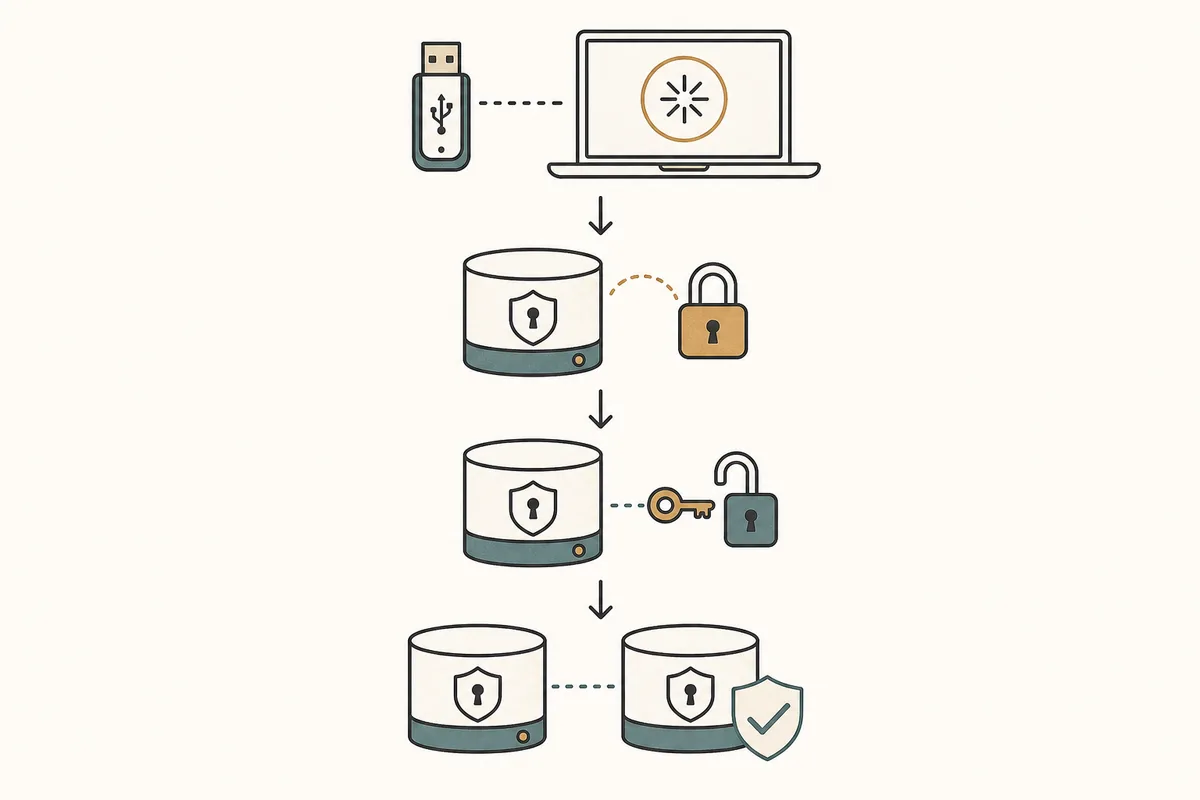
How to create and unlock Persistent Storage
The labels and locations of the Persistent Storage tool can change between releases. Follow the current official guide and the controls shown by the Tails version you actually boot. The safe sequence is more important than memorizing one screenshot: start clean, create the encrypted area, restart, unlock it, and test only the features you intended to enable.
Do not create persistence inside a virtual machine or on a DVD and assume it behaves like the normal USB workflow. A VM disk is controlled by the host, while optical media is read-only. If the goal is a repeatable Tails session with supported persistent features, use the dedicated USB path.
- 1
Boot a verified Tails USB
Start the exact USB you verified, complete the welcome flow, and make sure the base session works before changing storage.
- 2
Open the official storage setup
Use the Persistent Storage option provided by the running Tails release. Read the explanation of supported features before confirming creation.
- 3
Create and protect the area
Choose a strong passphrase and let the tool finish. Keep the USB connected and do not force a shutdown while it is writing.
- 4
Restart and unlock
End the session normally, boot the same USB again, and unlock Persistent Storage only when you need the selected data or settings.
- 5
Test the result
Create a harmless test file or setting, restart normally, unlock the storage, and confirm that the intended item returns while unrelated session state does not.
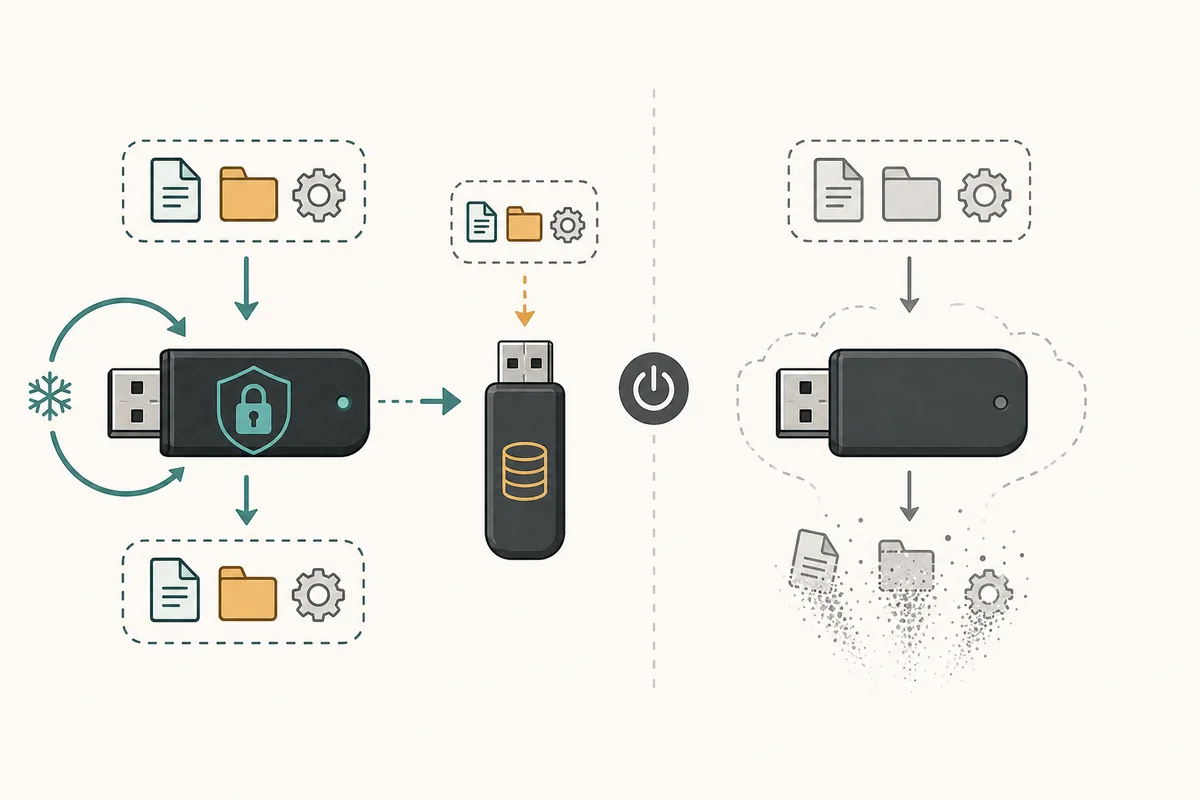
What can persist—and what does not
Persistent Storage is not a promise that every part of the desktop survives. Tails exposes supported persistence features so you can decide what to keep. The exact list and behavior are release-specific, so use the official documentation as the source of truth instead of copying a third-party checklist from an older version.
A useful test is to separate deliberate data from accidental residue. Deliberate data is a document or setting you intentionally enabled for persistence. Accidental residue is a browser cache, a temporary download, an open session, or a file left in a location that is not covered by the selected feature. Do not assume the second category will return.
| Question | Practical answer | What to verify |
|---|---|---|
| Will every file survive? | No. Only selected supported storage locations or features should persist. | Create a test file in the documented location. |
| Will the normal session be saved? | No. Ordinary temporary activity is still intended to disappear at shutdown. | Restart and check what was deliberately enabled. |
| Can persistence replace a backup? | No. The USB is still one device that can fail or be lost. | Restore a copy on a separate protected device. |
| Does encryption protect an unlocked session? | Not from every local or host-level threat. | Lock or shut down when the session is not in use. |
| Does a VM equal a USB? | No. A VM adds a host and hypervisor boundary. | Use the dedicated USB for the normal supported path. |
A file that appears in one session is not proof that it is stored persistently. Test after a normal restart and keep the official release documentation nearby.
Backups, upgrades, and recovery
Back up important Persistent Storage data before a major change, an upgrade, a rebuild, or travel. The safest backup is separate from the boot USB and protected with a method you can later restore. Do not keep the only copy on the same device that starts Tails.
A backup is useful only if you can recognize and restore it. Keep a small inventory of what you intentionally persist, the date of the last backup, and the steps needed to use it again. Periodically test a non-critical file on another protected device rather than discovering during an emergency that a copied folder is incomplete.
When an update or USB problem occurs, separate the questions. First ask whether the Tails image is current and verified. Then ask whether the Persistent Storage area can be opened by the supported path. Finally ask whether the data exists in an independent backup. Do not repeatedly force a failing USB or overwrite it before preserving what can still be recovered.
- Back up before upgrades, rebuilds, firmware changes, or long travel.
- Keep the recovery copy on a separate protected device.
- Never publish or share the Persistent Storage passphrase.
- If the passphrase is lost, do not promise recovery from the encrypted area.
- Replace an unreliable USB instead of treating repeated write errors as normal.
Security limits and common mistakes
Persistent Storage reduces one class of risk—unprotected selected data at rest—but it does not solve every privacy problem. A computer with hostile firmware, a compromised host, a stolen unlocked session, an identifying account, or a revealing document can still expose information. Tor routing and encrypted storage do not remove the need for careful operational decisions.
Avoid convenience features that undermine the boundary you are trying to maintain. Do not share the passphrase, leave the storage unlocked while away, mix personal and sensitive identities without a reason, or assume that deleting a file from the visible desktop proves that every copy is gone. Use the official documentation for supported behavior and avoid random commands copied from old forums.
If the page you need is about boot failure, use the boot troubleshooting guide. If it is about the ISO or a VM, use the ISO guide. If it is about updating, use the update guide. This page stays focused on the storage lifecycle so the instructions remain clear and do not compete with those existing intents.
- Do not treat encryption as protection from a compromised or unlocked computer.
- Do not use personal accounts as proof that a session is anonymous.
- Do not copy a passphrase into an unprotected notes file on the same USB.
- Do not rebuild or reformat the USB before checking for an independent backup.
A simple verified USB with a small, understood persistence scope is easier to back up and troubleshoot than a complex stack of unsupported storage or virtualization layers.
Practical Persistent Storage checklist
Use Persistent Storage when you have a clear reason to keep selected data or settings between Tails sessions. Start with the official download and verification flow, create it on a dedicated USB, enable only what you understand, and test after a clean restart.
Treat the encrypted area as one working copy rather than your only archive. Back up important files separately, keep the passphrase private, and revisit the official documentation after a Tails release or when the USB shows signs of failure.
If you do not need continuity, leave Persistent Storage disabled. A shorter lifecycle can be easier to reason about than keeping data that you do not need.
- Verified image and dedicated USB first.
- Strong private passphrase, minimal enabled features.
- Normal restart test after creation.
- Separate backup before updates or travel.
- Official documentation for release-specific behavior.
Tails Persistent Storage FAQ
Does Tails Persistent Storage work without a USB?
The normal supported workflow uses a dedicated Tails USB. A VM disk is controlled by the host and a DVD is read-only, so neither should be presented as an equivalent replacement.
Is Persistent Storage required to use Tails?
No. It is optional. Tails can run without it when you want the simplest disposable-session model.
What happens if I lose the passphrase?
Do not assume that the encrypted area can be opened without its passphrase. Keep an independent backup of important files and follow the current official recovery guidance.
Can I keep every download and browser history item?
No. Persistence is selective and release-specific. Ordinary temporary session state should not be treated as a guaranteed saved archive.
Should I back up Persistent Storage before updating Tails?
Yes. Back up important data before upgrades, rebuilding the USB, or any operation that could interrupt writing. A supported update path is not a substitute for a separate recovery copy.
Does Persistent Storage make Tails anonymous?
No. It controls selected saved data. Accounts, documents, metadata, a compromised host, an unlocked session, and other behavior can still identify or expose you.
Technical facts and downloads should be confirmed against the Tails Persistent Storage documentation. This independent guide does not host or modify Tails images.