
Download the Tails ISO from tails.net when you are creating a virtual machine, burning a DVD, or following a specific advanced instruction. For a normal bootable USB, use the official USB image instead.
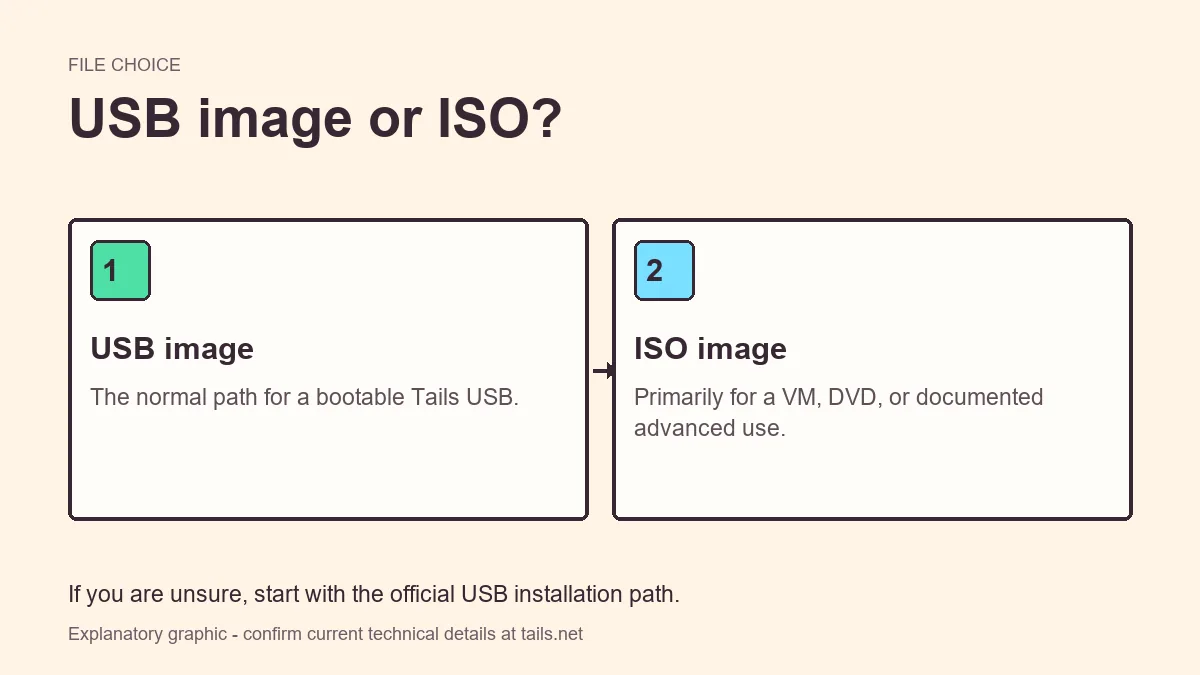
When the Tails ISO is the right download
An ISO represents optical installation media and is commonly accepted by virtualization software. It is useful for testing the interface, learning the startup flow, or running a disposable lab environment.
A DVD can also use an ISO, although optical media is slower and less convenient than a USB stick. Check the official documentation because supported use cases and limitations can change.
- Creating a VM for testing or training
- Booting from optical media on compatible hardware
- Following documentation that explicitly asks for the ISO
ISO versus USB image
The two downloads are not interchangeable labels for the same workflow. The USB image is structured for writing to a removable storage device, while the ISO is presented as optical or virtual media.
| Decision | USB image | ISO |
|---|---|---|
| Normal Tails USB | Recommended | Not the default |
| Virtual machine | Usually not selected | Common choice |
| Persistent Storage | Designed for normal USB use | VM-dependent and limited |
| Hardware isolation | Boots on the computer | Shares a host environment |
Virtual machine security trade-offs
A VM is convenient, but it relies on the host operating system, hypervisor, firmware, and storage. A compromised host can observe or manipulate a guest in ways that are not possible when Tails starts directly on compatible hardware.
Do not interpret a VM window as providing the full operational properties of a dedicated Tails USB. Use it for learning or a threat model that explicitly accepts the host dependency.
- The host can see that virtualization software is running.
- Clipboard, shared folders, snapshots, and integration features can leak data.
- The host controls physical network and storage access.
- Persistent VM disks can retain more than expected.
If you are unsure whether you need an ISO, you probably want the USB installation path.
How to use the official ISO
Keep the downloaded file in a known location and verify it before attaching it to a virtual machine or burning media.
- 1
Open the official download page
Confirm that the page belongs to tails.net and locate the current ISO option.
- 2
Download and verify
Complete the official verification step before using the ISO.
- 3
Create an isolated VM
Use a new virtual machine, avoid shared folders and clipboard integration, and attach the ISO as boot media.
- 4
Boot and test
Start the VM, confirm the Tails welcome screen appears, and keep the limitations of the host environment in mind.
Problems opening or booting the ISO
A zero-byte, partially downloaded, or renamed file will not boot. Verification should be the first diagnostic step. In a VM, also confirm that the virtual optical drive is connected and first in the boot order.
- Download again when verification fails.
- Do not extract the ISO before attaching it to a VM.
- Disable host integration features that are not needed.
- Check that the VM architecture is compatible with current Tails requirements.
Use a Tails VM without creating false confidence
Treat a Tails virtual machine as a separate use case, not a preview that proves a physical USB will work. The VM emulates hardware, so a successful virtual boot says little about the real computer's graphics, Wi-Fi, firmware, or external-startup controls. Test those separately with a verified USB when direct boot is part of the plan.
Review every convenience feature offered by the hypervisor. Shared clipboard, drag and drop, shared folders, host-mounted USB devices, saved machine state, and snapshots can create storage or data paths outside the Tails session. Disable features that are not necessary and understand where the hypervisor keeps configuration, logs, memory snapshots, and virtual disks.
Keep the host operating system and virtualization software updated. If the host is compromised, the guest cannot establish a strong independent boundary. Avoid signing into identity-linked host applications merely because the Tails window is open, and never describe the setup to others as equivalent to dedicated hardware unless the differences have been assessed.
- Separate VM testing from hardware compatibility testing.
- Disable unnecessary integration features.
- Review snapshot and virtual-disk retention.
- Keep the host and hypervisor patched.
- Reconfirm the ISO after every fresh download.
Review every Tails OS ISO download before use
A Tails OS ISO download should remain paired with its official release page and verification result. If several copies are stored locally, delete ambiguous duplicates and keep one clearly identified file. Before attaching it to a virtual machine, repeat the current verification process when the Tails OS ISO download has crossed devices, removable storage, or an untrusted transfer path.
Virtualization settings deserve the same review as the image. Create a fresh guest, attach the verified ISO as read-only boot media when the hypervisor supports that choice, and disable shared folders, clipboard integration, drag and drop, host-mounted drives, and persistent snapshots unless the use case requires them. A verified Tails OS ISO download confirms the release file; it does not make the host operating system trustworthy.
Check the official release status before reusing an older Tails OS ISO download. A file can still pass its original integrity check after the release has become outdated. Download the current ISO from tails.net when security announcements or release notes call for an update, verify it again, and retire old VM templates that could be started accidentally.
- Keep the Tails OS ISO download with traceable release information.
- Disable unnecessary VM integration and retained state.
- Treat the host as part of the security boundary.
- Replace outdated ISO files even when their old checksum still matches.
Tails ISO download FAQ
Can I use the Tails ISO with VirtualBox or another VM?
An ISO is the usual media format for a VM, but consult current Tails documentation for supported configurations and security limitations.
Is an ISO safer than the USB image?
No file format is automatically safer. A VM usually adds dependence on the host, while the USB image supports the normal direct-boot workflow.
Can I use the ISO to create a USB?
Use the official USB image and platform instructions for the normal Tails USB workflow unless current documentation specifically directs otherwise.
Should I extract the ISO?
No. Virtualization software normally attaches the ISO as a virtual optical disc.
Technical facts and downloads should be confirmed against the official Tails documentation. This independent guide does not host or modify Tails images.