
Download Tails from tails.net and run the verification method presented on the same official page. If verification fails, do not write or boot the file; delete it, check the source and system clock, then download again through a trusted connection.
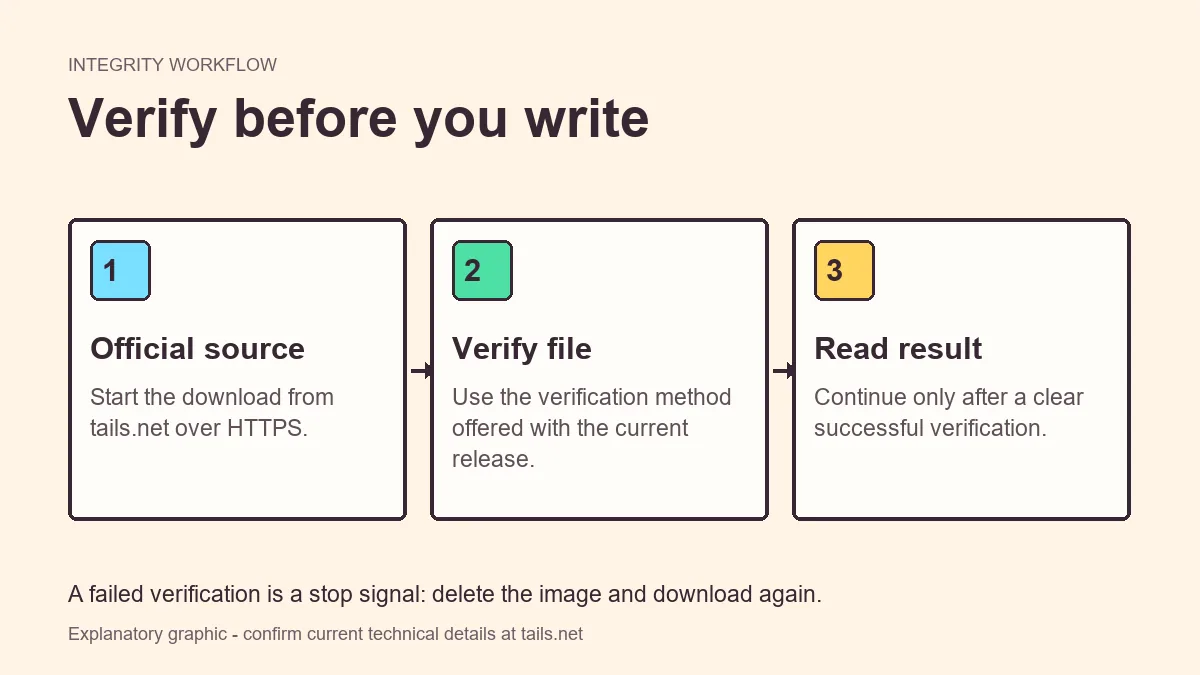
What verification can tell you
A large image can be incomplete or corrupted even when the browser reports that the download finished. A cryptographic check compares the received file with a value or signature associated with the official release.
Verification is stronger when the verification tool and expected identity come from a trusted official channel. A checksum copied from the same untrusted download page does not independently prove much.
- Detects accidental corruption and incomplete files
- Can confirm a match with the officially published release
- Reduces wasted time writing a broken USB
- Does not evaluate every future behavior of the operating system
Verify using the official flow
The exact interface can change, so start beside the download link instead of following an old third-party command from memory.
- 1
Confirm the domain
The download and verification instructions should be on tails.net over HTTPS.
- 2
Finish the download
Wait until the browser completes the file and make sure it has not been renamed by repeated downloads.
- 3
Run the offered verification
Select the downloaded image or follow the current signature/checksum instructions exactly.
- 4
Read the result
Continue only after a clear success result. A warning or mismatch is not a minor issue to ignore.
A filename such as tails-amd64-version.img does not prove the content is authentic or complete.
What to do when verification fails
A failure can come from a partial transfer, altered file, wrong release, selecting the wrong local file, browser extension interference, or an outdated verification instruction. Treat every failure as a reason to stop.
- Delete the failed image rather than keeping several ambiguous copies.
- Reopen tails.net directly and download again.
- Check that the device date and time are reasonable.
- Try another stable network or browser if repeated downloads fail.
- Do not use a third-party mirror to bypass the problem.
Verification is one part of safe downloading
Verification cannot compensate for a compromised device, unsafe browser extension, malicious firmware, or risky behavior after startup. It answers a narrower question: whether the image matches the official release information used by the check.
Keep the current operating system and browser updated, type or bookmark the official domain, and avoid sponsored download buttons that imitate the product name.
- Use the official domain.
- Check the HTTPS connection and spelling.
- Verify before writing.
- Install Tails updates through official mechanisms.
Verify again during troubleshooting
If the USB fails on multiple compatible computers, repeat the image verification and write process before exploring complex firmware options. This creates a known-good software baseline.
When only one machine fails, the problem is more likely related to ports, startup selection, graphics, or hardware compatibility.
| Symptom | Verification action | Next check |
|---|---|---|
| Writer rejects image | Verify or redownload | Free disk space and tool version |
| USB fails on every computer | Verify and rewrite | USB health |
| USB fails on one computer | Confirm image once | Firmware and hardware support |
| ISO will not start in VM | Verify ISO | VM boot media and architecture |
Keep verification evidence clear
When several images accumulate in a Downloads folder, their names can become ambiguous through suffixes such as `(1)` or automatic renaming. Keep only the verified file you intend to write, and record the release or download date separately if the setup must be reproduced later.
Do not publish a screenshot of a successful verification as proof that another person has the same file. The check applies to the local bytes selected during that session. Each recipient should download from the official source and perform the current verification method independently.
If an image is copied between computers or stored for a long time, verification can be repeated before use. Storage corruption is uncommon but possible, and an old verified release may still be obsolete. Check the current release status and security announcements as well as file integrity.
- Keep one clearly named candidate file.
- Verify the exact file that will be written.
- Repeat verification after uncertain transfers.
- Check whether the verified release is still current.
- Do not treat another person's screenshot as verification.
Use the verify Tails download check at the right moments
Run the verify Tails download check immediately after the official transfer and before the image writer, virtual machine, or DVD tool uses the file. Select the exact local image you intend to use. A matching filename, browser completion message, or third-party malware scan does not replace the cryptographic method provided with the current release.
Repeat the verify Tails download process after an uncertain copy, long storage period, unexplained writer error, or failure across several compatible computers. Delete ambiguous duplicates so the verified result cannot be confused with another image. If verification fails, stop rather than trying to repair, rename, or partially reuse the file.
A successful verify Tails download result proves a narrow but important fact: the selected bytes match the release identity used by that check. It does not prove that the release is still current, the computer is uncompromised, or future behavior is anonymous. Review current release and security information before every rebuild.
- Verify Tails download files from the official source.
- Verify the exact file before writing or booting.
- Repeat verification after uncertain storage or transfer.
- Check release freshness separately from file integrity.
Tails download verification FAQ
Is checking the file size enough?
No. Size can reveal an obviously incomplete file, but cryptographic verification provides a stronger content check.
Can I use the file after a verification warning?
No. Stop and obtain a fresh image through the official source.
Should I verify an ISO used only in a VM?
Yes. A virtual machine still needs a complete, expected image.
Does verification prove I am anonymous?
No. It verifies the image, not user behavior, hardware, accounts, network conditions, or operational security.
Should I trust a checksum posted on a forum?
Use the verification information and method published through the official Tails channel. A checksum copied from the same untrusted place as a download does not provide an independent trust path, even when the format looks correct.
Do I need to verify the image again after copying it?
Repeat verification when a file was transferred through uncertain storage, renamed among several copies, or kept for a long period. Also confirm that the verified release remains current; integrity alone does not make an old release suitable.
Technical facts and downloads should be confirmed against the official Tails documentation. This independent guide does not host or modify Tails images.