
Tails OS uses Tor Browser for normal web browsing. It is integrated with the Tails network model, but it does not make accounts, downloads, host hardware, or personal behavior anonymous. Do not replace it with Brave, Chrome, or Firefox and assume the same protections; check current official guidance before changing the browser path.

Which browser does Tails OS use?
The normal Tails OS browser is Tor Browser. It is the browser path intended for everyday web access from a Tails session, and its settings are designed to work with the system's Tor-based network model. Start with the browser that the current official Tails documentation describes instead of treating Tails as a blank Linux desktop where any browser choice is interchangeable.
Tor Browser is not a promise that every action becomes anonymous. A website can still recognize an account, a person can still reveal identity through a message or document, and the host computer, firmware, physical surroundings, and network conditions remain part of the real threat model. The browser is one control inside Tails, not a complete substitute for careful behavior.
- Use Tor Browser as the default web path in Tails.
- Keep the official Tails and Tor Browser documentation as the source of current settings.
- Treat accounts, documents, downloads, and personal behavior as separate identity risks.
A Tor-routed browser can reduce some network and tracking exposure, but it cannot undo a login, an identifying file, or a compromised host.
What Tor Browser protects—and what it cannot
Tor Browser helps send supported web traffic through the Tor network and is configured to reduce unnecessary browser uniqueness. That can make a session less directly tied to the local network, but the result depends on using the browser as intended and keeping the surrounding Tails session trustworthy.
The browser cannot hide an account from the service that owns it. It cannot remove identifying metadata from a document you upload, make a saved secret safe on a compromised host, or guarantee that every website behaves well inside a privacy-focused browser. A site refusing to load is often a compatibility issue, not proof that lowering protections is safe.
- Network routing is different from account anonymity.
- A downloaded document can contain metadata or trigger external requests later.
- Browser privacy settings do not protect a host that is already compromised.
- Do not install random extensions or copy a personal browser profile into Tails.

Choose a browser security level without breaking the model
Websites sometimes fail because they depend on scripts, media, fonts, or browser features that a privacy-focused configuration limits. The safest response is to understand which feature is needed and use the current Tor Browser controls described by official documentation, not to copy a random command or permanently weaken every site.
Before changing a setting, decide whether the site is worth the extra exposure. A one-time reading task may not justify a new identity, extension, login, or download. If a sensitive task requires a feature that the supported browser path does not provide, use a separate trusted workflow rather than quietly turning Tails into an ordinary desktop browser.
- Try the least disruptive official setting first.
- Avoid adding extensions merely to make a site look normal.
- Do not mix a personal browser profile or saved credentials into a Tails session.
- Recheck the official browser guide after a major release.
- 1
Identify the failure
Separate a blocked script, a network connection problem, a certificate warning, and a site that simply rejects Tor.
- 2
Read the official guidance
Use the current Tails and Tor Browser documentation before changing a security level or installing anything.
- 3
Change one thing
If a supported adjustment is necessary, make the smallest change and understand what protection it trades away.
- 4
Reset the plan
For a high-risk task, stop rather than weakening the browser until the page behaves like a normal desktop browser.
Can Tails OS run Brave, Firefox, or Chrome?
The practical answer is not simply yes or no. Tails' supported default is Tor Browser, and another browser should never be assumed to inherit the same routing, hardening, or privacy behavior. Before adding or using a different browser, check current official documentation for the release and confirm that the browser cannot create a direct-network path or a new fingerprint you did not intend.
For most readers, the safer decision is to keep web activity in Tor Browser and use a different operating system for ordinary browsing. A browser that feels familiar may be convenient, but convenience can encourage personal logins, saved passwords, extensions, and persistent profiles that conflict with the reason for starting Tails.
| Browser path | Reason to choose it | Boundary to check |
|---|---|---|
| Tor Browser in Tails | Normal web browsing from a Tails session | Keep the supported defaults and understand account limits |
| Brave, Firefox, or Chrome | Only a release-specific, documented need | Do not assume Tor routing, hardening, or fingerprint behavior |
| A separate ordinary system | Everyday accounts and convenience browsing | Keep identities and files separate from the Tails workflow |
The important question is whether the complete browser-and-network path matches the task. A familiar browser inside Tails is not automatically the same as the supported Tor Browser path.
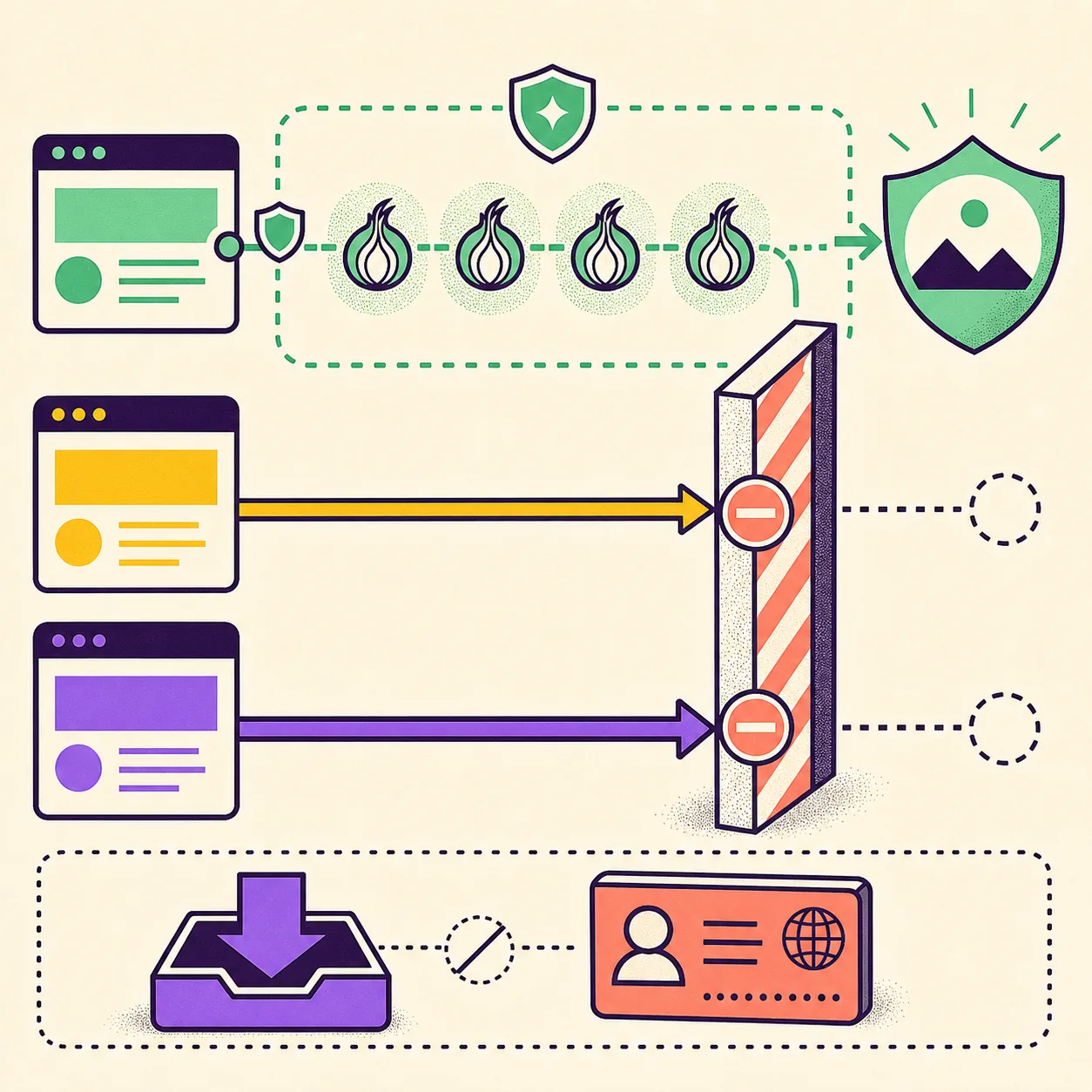
Downloads, accounts, and Persistent Storage
A browser session can be temporary while the files you deliberately save are not. Downloads, exported documents, screenshots, browser settings, and Persistent Storage create a bridge between sessions and can carry identifying information. Decide whether a file is needed before saving it, and keep important data backed up through the supported Persistent Storage workflow rather than assuming every browser action is preserved.
Accounts need the same separation. Signing into a personal account can connect a Tails session to an identity even when the network path is Tor. Reusing a unique document, contact address, writing pattern, or browser customization can also reveal that two sessions belong to the same person. Tails reduces some local traces; it does not make identity choices disappear.
- Download only the files you need and inspect them before opening elsewhere.
- Keep identity-linked accounts out of an anonymous workflow.
- Use supported Persistent Storage features and maintain a separate backup.
- Remember that a browser reset does not erase a copy already exported to another device.
Troubleshoot a Tails browser session safely
When a site does not work, start with the least risky explanation. Check whether Tor is connected, whether the system clock is reasonable, whether the site blocks Tor, and whether the problem is limited to one page. Do not jump directly to a new browser, an extension, or a downloaded workaround.
If the problem involves Wi-Fi, display, memory, or a USB that will not boot, the browser is not the first place to repair. Use the hardware and startup checks in the related Tails guides, then return to the browser once the base session is known to be working.
- Wait for the Tor connection before judging a page unavailable.
- Try a fresh tab or a safe restart instead of importing a personal profile.
- Treat certificate warnings, unexpected downloads, and direct-network prompts as stop signs.
- If a site requires ordinary browsing, move that task to a separate trusted system.
- 1
Confirm the session
Check that Tails started from the intended verified media and that the Tor connection is ready.
- 2
Classify the symptom
Separate a page error from Wi-Fi, time, memory, display, or startup trouble.
- 3
Use official help
Read the current Tails or Tor Browser documentation for the exact release.
- 4
Stop before bypassing
Do not disable protections or install an unverified browser just to complete one page.
Keep the Tails OS browser path intentional
The safest Tails OS browser habit is consistent: use Tor Browser for the supported web path, keep identities and documents separate, and treat every download or browser change as a new boundary decision. A private-looking window is not proof that the surrounding host, account, or file is harmless.
When a page fails, read the official guidance and identify the smallest change that could solve the problem. If the required behavior depends on a normal browser profile, a personal login, or a feature that would weaken the Tails model, use a separate trusted workflow instead of forcing the Tails session to behave like an everyday desktop.
Release details and browser controls can change. Check the official Tails documentation after an update and keep the download, verification, Persistent Storage, and system-requirements guides nearby when preparing a new session.
- Tor Browser is the normal Tails OS browser path.
- A browser cannot erase identity, host, or document risks.
- Keep downloads and Persistent Storage deliberate and backed up.
- Use official documentation before changing browser behavior.
Tails OS Browser FAQ
What browser does Tails OS use?
Tails uses Tor Browser as its normal web browser. Check the current official Tails documentation for release-specific behavior and controls.
Is Tails OS browser the same as a normal Firefox or Chrome browser?
No. Tails' supported Tor Browser path is configured for a different network and privacy model. Do not assume a familiar browser has the same routing or hardening.
Can Tails OS run Brave browser?
Do not treat Brave as an automatic replacement for Tor Browser. A different browser may have different routing, fingerprint, extension, and storage behavior; check current official guidance before using it for a sensitive task.
Can I log into my personal account in Tails Browser?
A Tor connection does not stop a service from recognizing an account. Keep personal identities separate from an anonymous workflow and avoid reusing identifying documents or contact details.
Are browser downloads saved after I shut down Tails?
Tails is designed to forget ordinary session state, but files you deliberately copy into Persistent Storage or another device can remain. Use the supported storage workflow and keep a separate backup.
Why does a website not work in Tails Browser?
The site may be waiting for Tor, blocking Tor users, or depending on scripts and features limited by the browser's privacy settings. Read current official guidance before weakening protections or switching browsers.
Technical facts and downloads should be confirmed against the official Tails Tor Browser documentation. This independent guide does not host or modify Tails images.