
Yes. You can format a Tails USB and use it for ordinary files again, but the operation removes the Tails installation, Persistent Storage, and other data on that USB. Back up first, confirm the physical device by capacity and connection, then use your operating system's disk tool to remove the old layout and create a new volume.
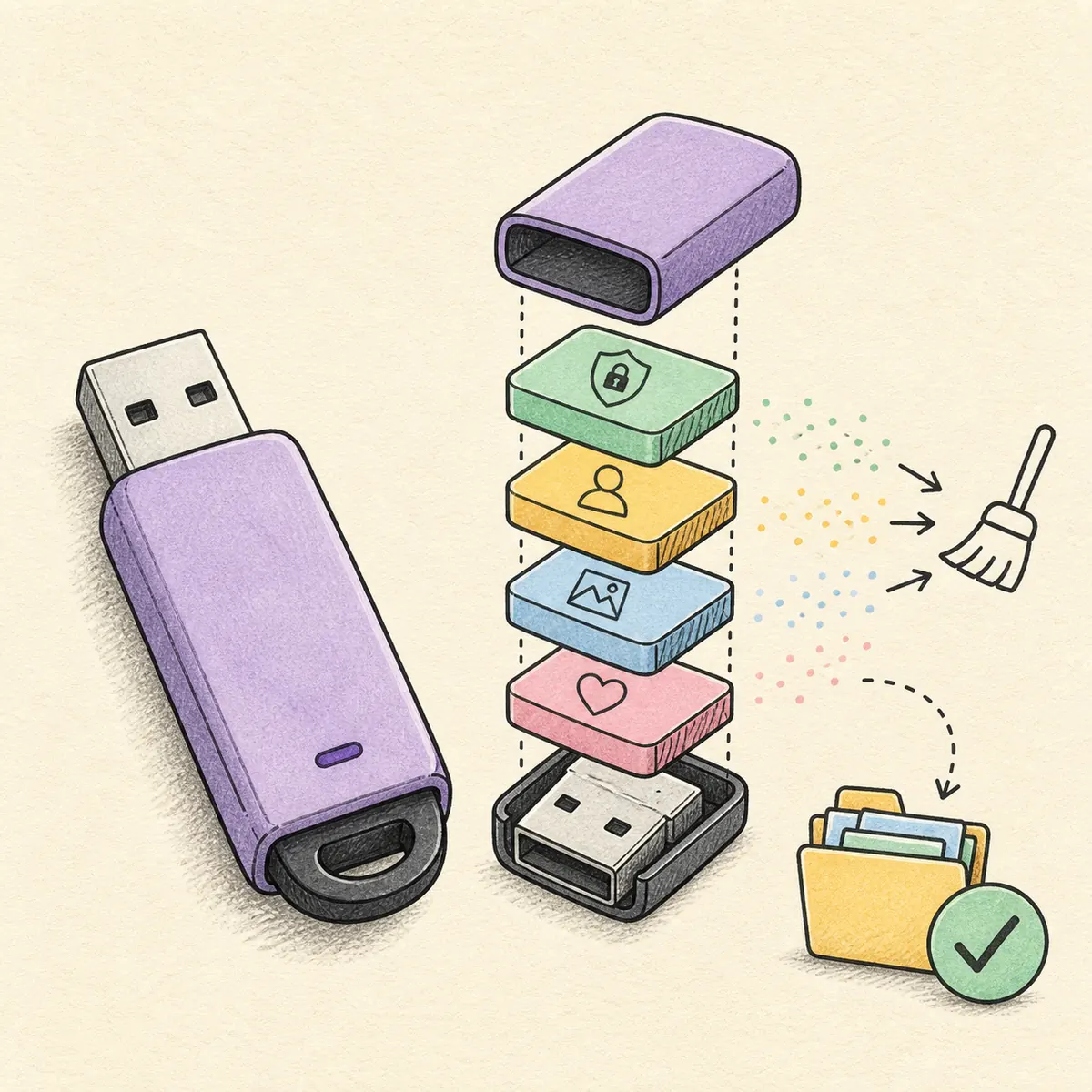
Before you format: decide whether you really want to erase Tails
Formatting is the right choice when you want a normal storage drive again, need to reclaim the space, or are retiring a USB from a Tails workflow. It is not a way to update Tails. If you still want a bootable system, keep the drive and follow the Tails OS USB guide instead.
It is also not a repair for a USB that fails to boot. When the goal is to start Tails, first check the image, write process, port, and firmware using the boot troubleshooting guide. Erasing a drive that might still contain useful Persistent Storage can turn a boot problem into permanent data loss.
- Export important documents from Persistent Storage before changing the drive.
- Keep recovery codes, keys, and irreplaceable files on a separate protected copy.
- Use formatting only after deciding that Tails will no longer be needed on this USB.
| Goal | Best action | What changes |
|---|---|---|
| Keep using Tails | Keep the USB and update it through the official path | Tails and its supported data remain |
| Return to ordinary storage | Back up, erase the USB layout, and create a new volume | Tails and all selected-drive data are removed |
| Fix startup | Verify or rewrite first, then use boot troubleshooting | Formatting is not the first diagnostic step |
Every partition and file on the selected USB may be removed. Disk tools can show the internal system disk beside the USB, so identify the physical device before deleting anything.
Back up data and identify the correct USB
Close Tails and disconnect the USB cleanly. Copy files from Persistent Storage to a separate location that you can open independently. A backup is useful only when you can confirm that the files are complete and readable.
Before opening a disk utility, unplug other removable drives, card readers, and phones if possible. Compare the USB's physical shape, brand, approximate capacity, and the port it uses with the device shown by the operating system. A drive letter alone is not enough evidence.
- Back up documents, keys, configuration notes, and anything that cannot be replaced.
- Unplug other removable media so the device list is shorter.
- Read the capacity and connection details before selecting a disk.
- If the target is not obvious, stop and ask for local technical help rather than guessing.
| Check | Why it matters | Safer choice |
|---|---|---|
| Backup opens | A copied filename does not prove the file is usable | Open a few important files from the backup |
| Physical device | Internal disks can look similar in a list | Match capacity, brand, and USB connection |
| Other media | More drives increase selection risk | Disconnect unrelated removable devices |
| Tails data | Persistent Storage may contain the only copy | Export it before any erase action |
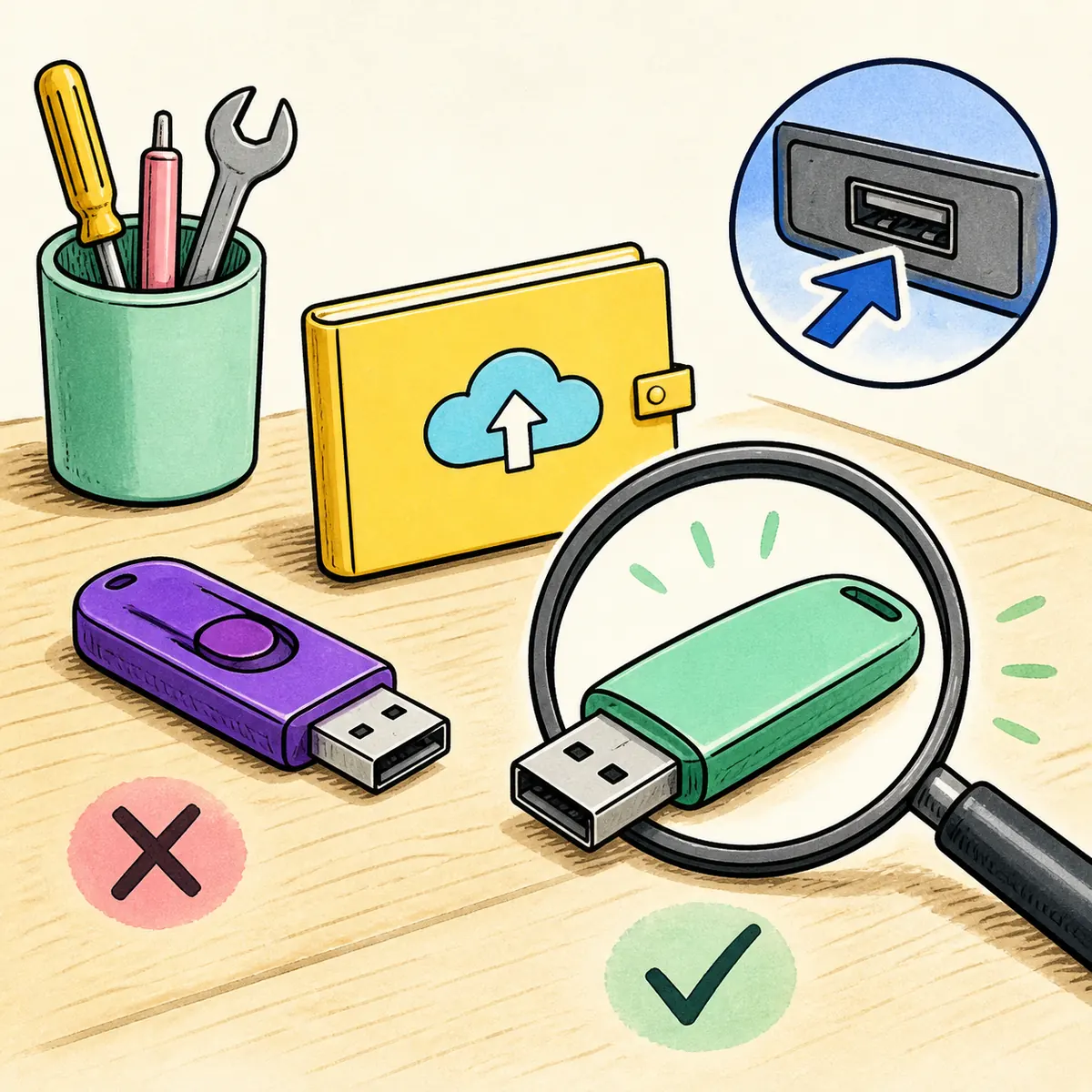
How to format a Tails USB on Windows
Windows may show only part of a Tails USB in File Explorer because the drive can contain partitions that Windows does not mount normally. Use Disk Management when the goal is to remove the old layout and make one ordinary volume.
The exact labels vary by Windows release, but the safety rule does not: select the removable physical disk by its capacity and connection, not the internal disk that contains Windows.
- 1
Back up and unplug other removable drives
Close applications, eject the Tails USB, confirm the backup, and disconnect other flash drives or memory cards.
- 2
Open Disk Management
Open the Windows disk-management utility and wait for the lower disk map to finish loading. Do not select the disk marked as the system or boot disk.
- 3
Select the physical USB by capacity
Match the removable disk's approximate size and connection to the USB in your hand. Tails may appear as several partitions or unallocated areas.
- 4
Delete only the USB volumes and create a new volume
On the confirmed USB, remove the old volumes, create a new simple volume, and choose a file system such as exFAT for cross-platform use or FAT32 for older compatibility. Read the final disk selection again before confirming.
- 5
Test the result
Open the new volume, copy a small non-sensitive file, eject the USB, reconnect it, and confirm that the file is readable. Do not treat a successful quick format as proof that worn flash memory is healthy.
Drive letters can change. The disk number, removable-media status, capacity, and the physical device together are safer evidence.
How to format a Tails USB on macOS
On macOS, Disk Utility can show a Tails USB as a physical device with one or more volumes. Choose the external physical device only after enabling the view that shows all devices. Erasing the wrong item can affect an internal Mac volume.
For a USB that will move between current Windows, macOS, and Linux computers, exFAT is usually a practical general-purpose choice. FAT32 is more broadly compatible with older equipment but cannot store a single file larger than 4 GB.
- 1
Back up and open Disk Utility
Confirm the backup, connect only the intended USB when possible, and open Disk Utility.
- 2
Show all devices
Use the view that exposes the physical device hierarchy, then select the external USB itself rather than an unrelated internal volume.
- 3
Erase the confirmed USB
Choose Erase, select a general-purpose format such as exFAT, review the device name and capacity, and confirm only after the target is unmistakable.
- 4
Reconnect and test
Eject the USB, reconnect it, create a test folder, and copy a small file. If the device repeatedly disappears, investigate the hardware instead of repeatedly erasing it.
| Use case | Practical choice | Limit to remember |
|---|---|---|
| Current cross-platform file storage | exFAT | Older devices may not support it |
| Older equipment or small files | FAT32 | A single file cannot exceed 4 GB |
| Tails boot media | Do not format for reuse | Use the official Tails image workflow instead |
How to format a Tails USB on Linux
On Linux, GNOME Disks, KDE Partition Manager, and other distribution disk tools can remove the Tails partition layout. The names differ, but the order is consistent: identify the physical USB, unmount its volumes, delete the old layout, create one file system, and mount it again.
If you need Tails again later, keep a verified copy of your planning notes and return to the download verification guide. Do not copy an old image back just because its filename looks familiar.
- 1
Identify the removable device
Compare the USB capacity and connection with the disk list. Never assume the first device or the device with the shortest name is the correct one.
- 2
Unmount its volumes
Close file-manager windows and unmount any volume belonging to the confirmed USB before changing its partitions.
- 3
Remove the old layout
Delete the Tails-related partitions from the confirmed removable device. Keep the internal system disk and unrelated external disks untouched.
- 4
Create a new file system
Create a new partition and choose exFAT or FAT32 based on where the drive will be used. Apply the change only after reviewing the target device.
- 5
Mount and verify
Mount the new volume, write a small test file, safely eject it, reconnect it, and check the file again.
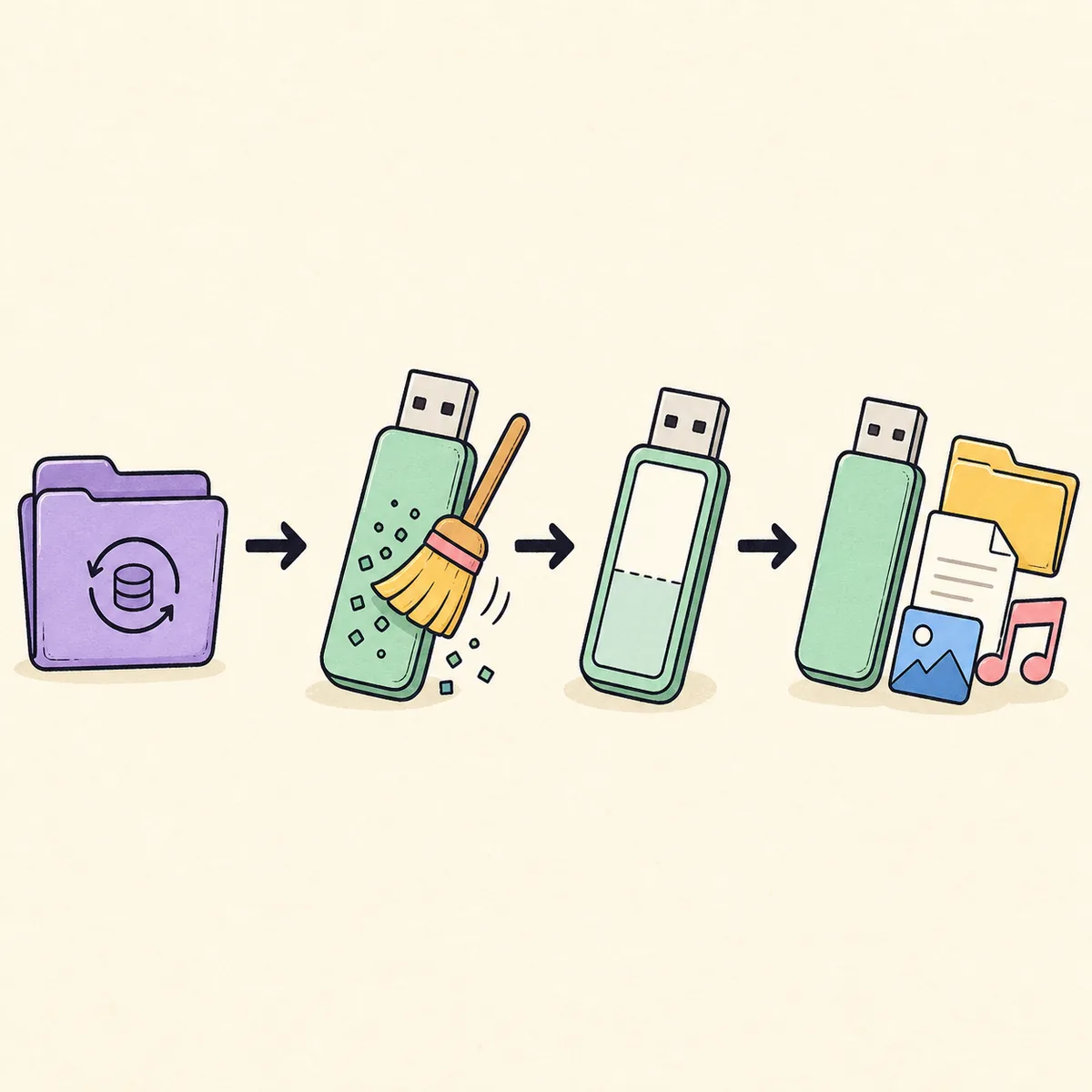
If the USB still looks broken or unreadable
A format can rebuild a partition layout, but it cannot repair a failing flash controller, damaged connector, unstable cable, or worn memory. If the disk disappears during the operation, do not keep repeating destructive actions.
Try one different direct USB port and, when practical, one other computer. If the same device disconnects, reports a wildly incorrect capacity, becomes read-only, or produces repeated write errors, treat it as a hardware warning and replace it. For a Tails startup problem that happens before reuse, return to the boot troubleshooting guide.
- Stop if the disk list changes while you are selecting the target.
- Test a direct port instead of a hub or dock.
- Check whether another computer sees the same capacity.
- Replace a drive that fails repeated read/write tests rather than trusting it with sensitive data.
What formatting does not do
Formatting removes the selected partition structure and creates a file system. It does not verify a Tails image, reinstall Tails, guarantee that every flash cell has been overwritten, or prove that a failing USB is safe to keep using.
If the USB previously held sensitive material, choose a data-disposal method appropriate to your threat model and local policy. Do not promise that a quick format makes old data unrecoverable. For normal reuse, the important practical boundary is that Tails and its Persistent Storage are no longer available from the newly created volume.
- Formatting is not the same as secure erasure.
- Formatting is not an image-verification step.
- Formatting is not a hardware-health test.
- Formatting does not preserve Persistent Storage unless you backed it up first.
Safe reuse checklist
A good result is not simply a disk that looks empty. It is a drive you selected deliberately, a backup you can open, a new volume you tested, and a clear decision about whether the USB should still be trusted for sensitive work.
- Backup confirmed before deletion.
- Physical USB matched by capacity and connection.
- Correct operating-system disk tool used.
- New volume ejected, reconnected, and tested.
- Future Tails downloads will come from the official source and be verified before writing.
FAQ: formatting and reusing a Tails USB
Will formatting remove Persistent Storage?
Yes. Formatting the selected USB removes its Tails installation, Persistent Storage, and other data on the deleted volumes. Export anything important first.
Can I format the USB from File Explorer or Finder?
Sometimes a normal volume is visible, but a Tails USB can have partitions those tools do not show. Use the operating system's disk-management utility when you need to remove the complete layout.
Which file system should I choose?
exFAT is a practical choice for current Windows, macOS, and Linux file sharing. FAT32 supports older devices but has a 4 GB single-file limit.
Does formatting make the old data unrecoverable?
Not necessarily. A quick format mainly creates a new file-system structure; it is not a universal secure-erasure guarantee.
Can I install Tails on the USB again later?
Yes. Revisit the official Tails download and verification flow, obtain the current image, and write it with the supported method. Do not rely on an old filename alone.
Why is the reported USB capacity different?
Manufacturers advertise decimal capacity, operating systems report space differently, and partition metadata can reserve or hide areas. A modest difference is normal; a wildly wrong capacity can indicate hardware trouble.
What if the USB is not detected at all?
Try a direct port and another compatible computer. If it repeatedly disappears or reports write errors, replace it rather than trusting it with important files.
Technical facts and downloads should be confirmed against the Tails official download and verification pages. This independent guide does not host or modify Tails images.