
Choose a guide by task: use requirements and installation for a bootable USB, boot help when the computer will not start from it, browser or Persistent Storage guidance for everyday choices, and the VM or no-USB guide when virtualization is part of the plan. Confirm version-specific steps on tails.net.

Tails OS guides: start with the task in front of you
A guide index helps when you know the problem but not the page name. New users can begin with requirements and USB installation; people with an existing drive can go directly to startup or troubleshooting.
Each guide has a narrower job: installation prepares media, boot help covers startup choices, and browser guidance explains browsing boundaries. Use official Tails documentation for changing screens, supported devices, and release-specific steps. This page is an independent index, not a download mirror.
| Your goal | Start with | What that guide answers |
|---|---|---|
| Prepare a normal USB | Tails OS USB guide | Which official path to use and how to prepare a dedicated drive. |
| Check a downloaded image | Verify a Tails download | How to follow the current verification instructions. |
| Reach the welcome screen | Boot Tails from USB | Where to choose the device and what to check when it is missing. |
| Keep selected files | Persistent Storage guide | How persistence differs from temporary session data and what to back up. |
| Use a virtual machine | Tails without USB and ISO guides | What a VM changes and where the host remains involved. |
| A startup or update failed | Tails troubleshooting | How to separate media, boot, hardware, and upgrade symptoms. |
Choose a supported USB setup route
For ordinary use, follow the official installer path instead of improvising with a file-writing command. The USB guide explains the sequence; platform guides select instructions for Windows, macOS, or Linux.
Before writing, move needed files elsewhere and identify the destination drive carefully because writing may erase it. Do not rely on an old screenshot or device name alone. Verify a downloaded image with the current official method; a filename or plausible size does not prove authenticity.
Keep download, verification, and writing as separate steps. If one fails, return to that step's guide instead of repeating the whole process.
- Read the current system requirements before choosing a device.
- Back up the destination drive before writing the image.
- Use the official source and verification workflow; do not substitute an unverified mirror.
- 1
Choose the setup guide
Open the USB overview, then select Windows, Mac, or Linux instructions for the computer preparing the drive.
- 2
Use the official sequence
Follow current Tails instructions for downloading, verifying, and preparing the media.
- 3
Protect the drive
Move needed files elsewhere and check the destination before writing, which may erase it.
- 4
Verify, write, then boot
Finish the published verification and writing steps before opening the startup guide.
Download, verify, write, and boot are separate tasks. Return to the guide for the step that failed.
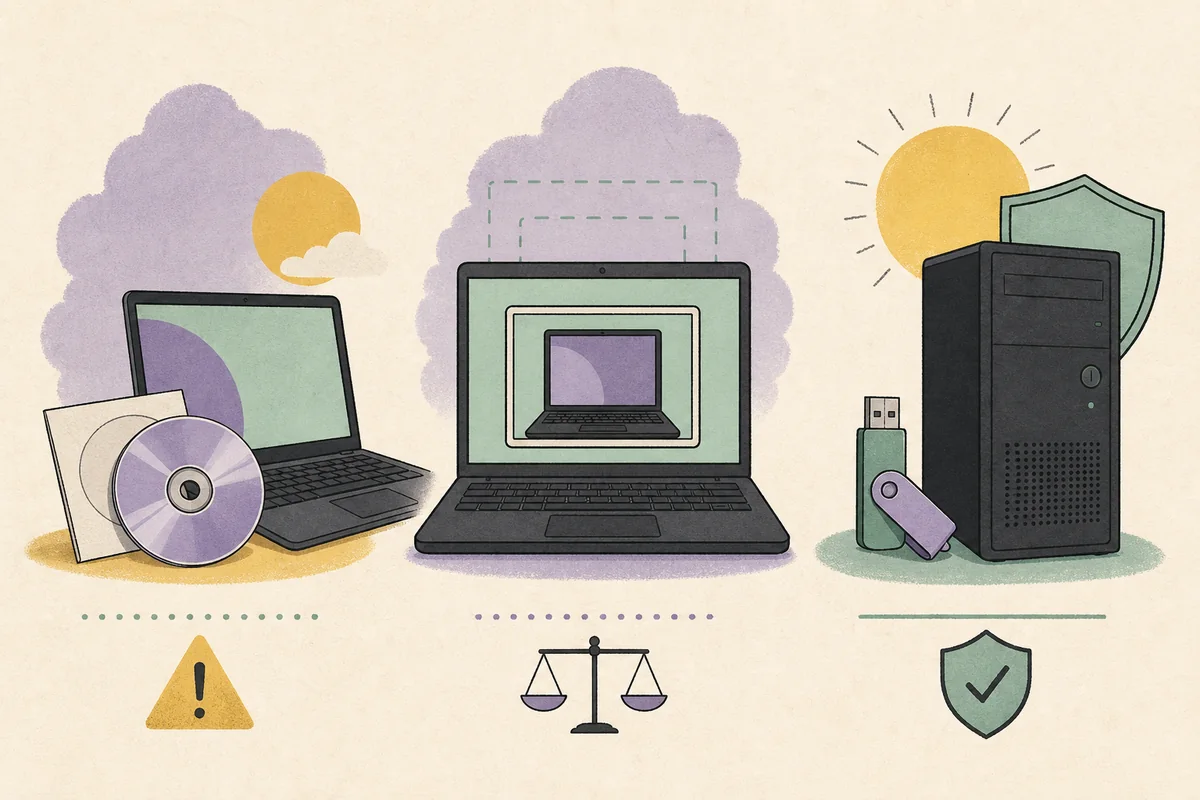
What to check when Tails will not start
A USB missing from the startup menu is different from a black screen after selection. Note where progress stops: before the menu, after selecting the USB, during startup, or after the welcome screen.
Use the boot guide for device selection, troubleshooting for missing entries or startup errors, and requirements guidance if compatibility is uncertain. If the problem began during an update, follow upgrade recovery instead of reinstalling. Change one relevant setting at a time and confirm device-specific advice with current official documentation.
- Record whether the USB appears in the one-time boot menu.
- Separate a missing device from a failure after device selection.
- Use the update-recovery path for problems that began during an upgrade.
Use the browser without changing the privacy model
Use the browser guide to understand the browser included with Tails and the limits of browser protection. A privacy-focused system does not make every account, document, website, or action anonymous; another browser is not automatically equivalent.
If a site fails, check the connection and current browser guidance before lowering protections or adding software. An account can still identify its user. Use the safe-use guide for the wider role of the host, network, files, and personal choices.
Plan what should persist between sessions
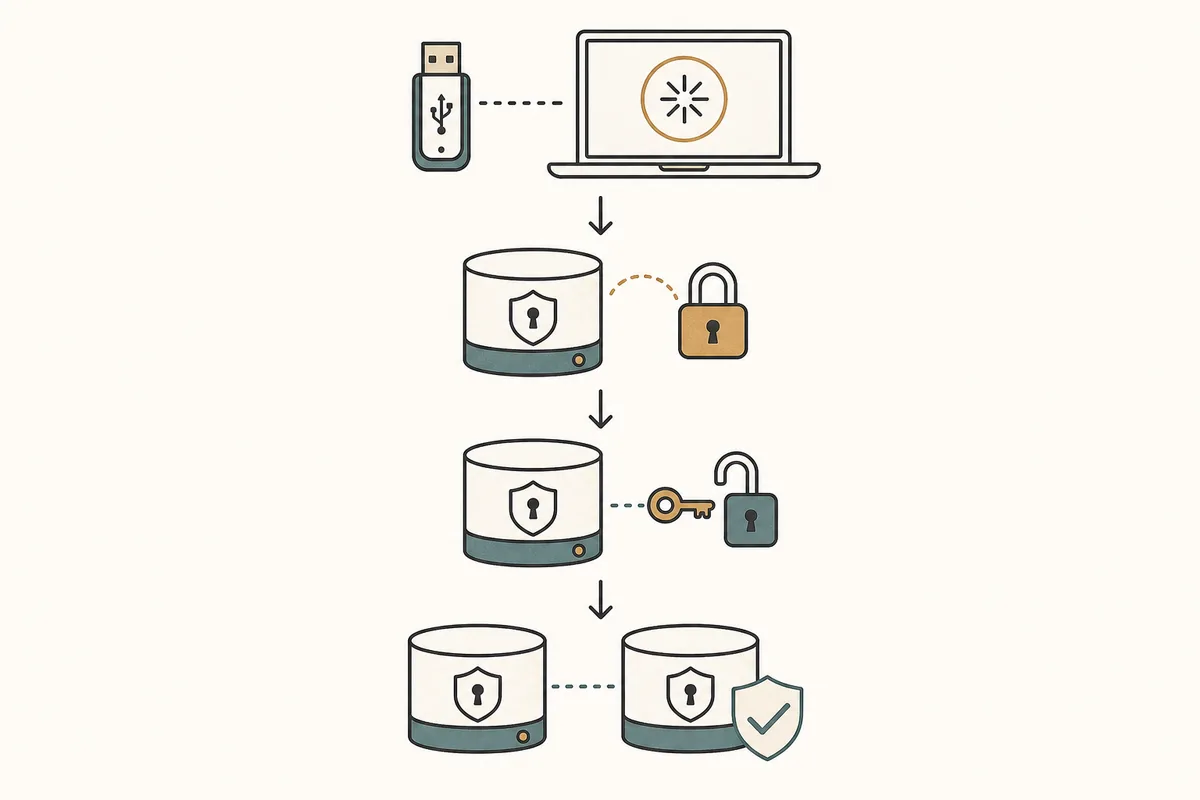
A fresh session and saved data serve different goals. Read the Persistent Storage guide before enabling it; the guide covers setup, unlocking, backups, and limits.
Decide which files or settings you need, where a separate copy will live, and how you will restore it. Do not assume every download or system change is saved. When files are missing, check the persistent location, whether storage unlocked, and whether an independent backup exists.
- Choose only the data and settings you need to retain.
- Keep a separate protected backup and test that it can be restored.
- Check the current official documentation before relying on version-specific behavior.
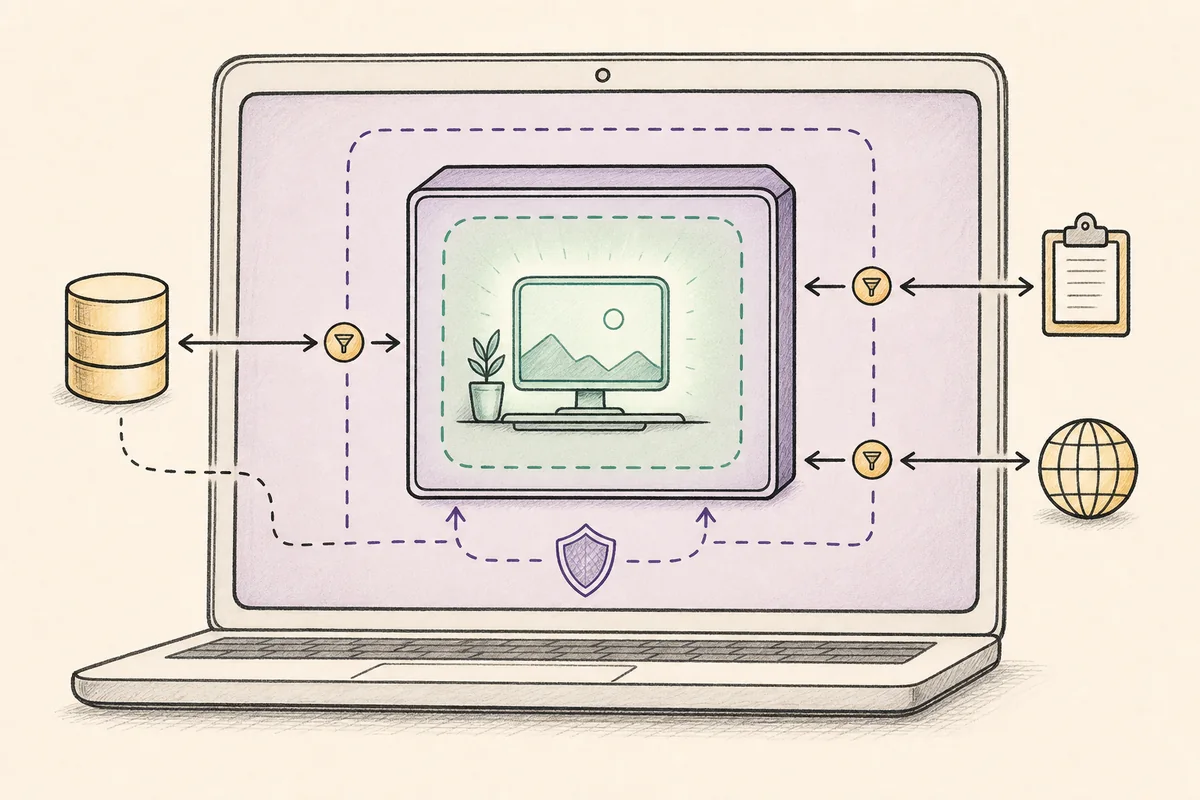
Should you use Tails in a virtual machine?
A VM can suit learning or a documented test, but it is not the same context as booting a dedicated USB directly. The host and virtualization software remain involved. Use the no-USB and ISO guides before choosing a virtual disk or passthrough setup.
Shared folders, clipboard, snapshots, and networking can change what the session can access. Review them deliberately. Choose a VM for a specific need, not as an assumed equivalent to direct boot; these guides do not certify a hypervisor or hide activity from its host.
| Route | Useful when | Main boundary to understand |
|---|---|---|
| Dedicated USB | You want the normal live-system path on compatible hardware. | The computer, firmware, and physical access still matter. |
| Virtual machine | You need a test or a documented VM workflow. | The host and hypervisor remain involved. |
| DVD or other fallback | You have a specific compatibility or read-only use case. | Features and update behavior can differ from USB use. |
Move to an update or troubleshooting guide
Use the update guide for an existing USB, not new-installation instructions. Check current release notes before acting, especially when keeping Persistent Storage. This index omits version numbers, file sizes, and download links that can become stale.
For an update failure, record the exact message and last successful boot, then choose update recovery or troubleshooting. Avoid old copied commands. If you are unsure, return to the task table and follow one focused path, confirming release-specific details on tails.net.
- Use the update guide for an existing USB and the install guide for a new one.
- Write down the last successful step before troubleshooting.
- Confirm version-specific steps against tails.net rather than an old copied procedure.
How to use these Tails OS guides
Choose the page that matches your task and confirm changing details on the official Tails site. Keep installation, verification, booting, browsing, persistence, and upgrades as separate decisions. This index does not host files or guarantee an outcome on every computer.
For a new setup, start with requirements and USB preparation. For an existing installation, choose the page that matches the last successful step.
- Use official Tails sources for current release and installation instructions.
- Do not treat a VM, a browser choice, or saved storage as a universal privacy guarantee.
- Back up the destination device and important data before making changes.
Tails OS Guides FAQ
Where should a beginner start with Tails OS?
Start with system requirements and USB installation, then use the boot guide for startup and the browser guide for everyday choices.
Which Tails OS guide explains creating a USB?
Use the USB overview and then the Windows, Mac, or Linux guide for the computer preparing the drive.
Is a Tails OS guide the same as official documentation?
No. This independent index helps select a topic. Use tails.net for current technical steps, release details, and security guidance.
Which guide covers Tails in a virtual machine?
Start with the no-USB and ISO guides; they explain the VM's host and hypervisor boundary.
Where can I learn about Tails Persistent Storage?
Use the dedicated guide for setup, unlocking, backups, and limits. Keep a separate recovery copy.
What should I read if Tails will not boot?
Use boot help if the USB is missing from the menu, or troubleshooting if it appears but fails to start.
Technical facts and downloads should be confirmed against the official Tails documentation index. This independent guide does not host or modify Tails images.